Git for Beginners: A Simple Guide to Version Control
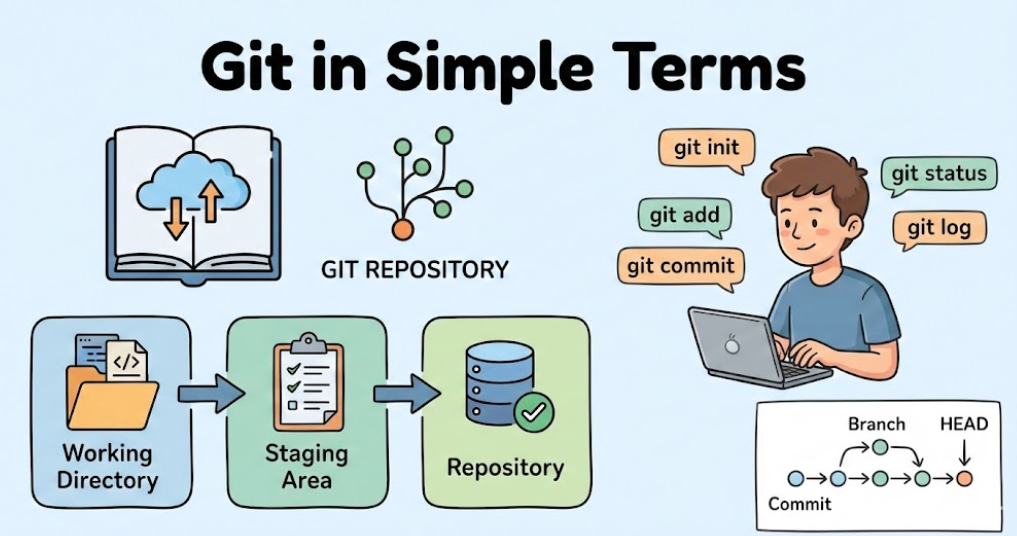
Full-stack developer and startup founder building tech solutions in Ayodhya. Vlogger with 27k+ followers sharing my journey in technology and SaaS.
What is Git
In simple terms, GIT is a system that is used to track changes in files or projects, which helps multiple users to contribute to a single project or a single file without any problems. GIT is a VCS ( version control system ). It will take a snapshot of the entire file or code and then compare it to find changes or revert bugs in the code.
Why Git is Used
GIT is used to track changes in files or in code and also allows multiple user can contribute to a single project. GIT replace the old pendrive technique, in which if we have a team of 5 coders in a single project, then only one person can work at a time, and others cannot seethe changes made by others. So to solve this big problem, we used VCS ( Version Control System) to track and allow multiple users to work. Aslo If you make a mistake, you can go back in time to an older version.
Let's See Some Git Basics and Core Terminologies
Let's see some GIT Basic And Core Terminology used in GIT operations which is compulsory to know.
Repository (Repo)
This is just a folder for your project. It contains all your files and the history of every change you have made.
Simple word: The Project Folder.
Commit
A commit is like taking a photo of your files at a specific moment. When you "commit," you are telling Git: "Save my work exactly like this right now."
Simple word: A Snapshot.
Branch
A branch is a side path where you can try new ideas without breaking the main project. If the idea is good, you merge it back.
Simple word: A Parallel Version.
Clone
This means making a copy of a project from the internet (like GitHub) onto your own computer.
Simple word: Copying.
Remote
This is the version of your project that lives on the internet (like GitHub or GitLab). It allows you to share your work with others.
Simple word: The Online Version.
Common Git Commands
There are a lot of commands used in Git. Let's see some of the common commands.
git inti
This is the first command used to add the Git system to our program or project. GIT is used to initialized empty GIT repository in the file. It will save all files used in the Git system, which helps to track changes in the project.
git add <Add file name >
This moves your changes from your folder to the Staging Area
Pro tip: Use git add . (with a dot) to add all changed files at once.
git commit -m "Your message"
This takes everything in the Staging Area and saves it forever in the Repository.
- The "-m" part: This stands for "message." You must write a short note explaining what you changed.
git log
This shows you a list of all the snapshots (commits) you have ever made. It is like a history book of your project. It shows the date, the author, and the message you wrote.
git status
This is your most helpful friend. It tells you what is happening right now. It shows you which files are changed and which ones are ready to be saved.
- When to use: Use this all the time to see what you are doing.
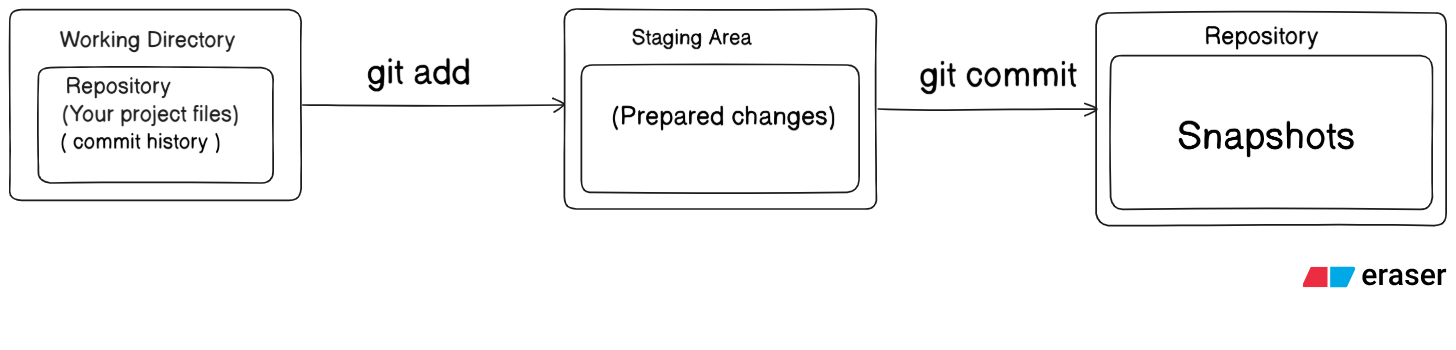
The Git Workflow: Working Directory, Staging Area, and Repository
Git uses three main areas to manage changes:
- Working Directory: Your project folder where you edit files.
Staging Area (Index): A holding area where you prepare files for a commit.
Repository: The permanent history of all your commits.
Here's a diagram illustrating the flow:
The Commit History
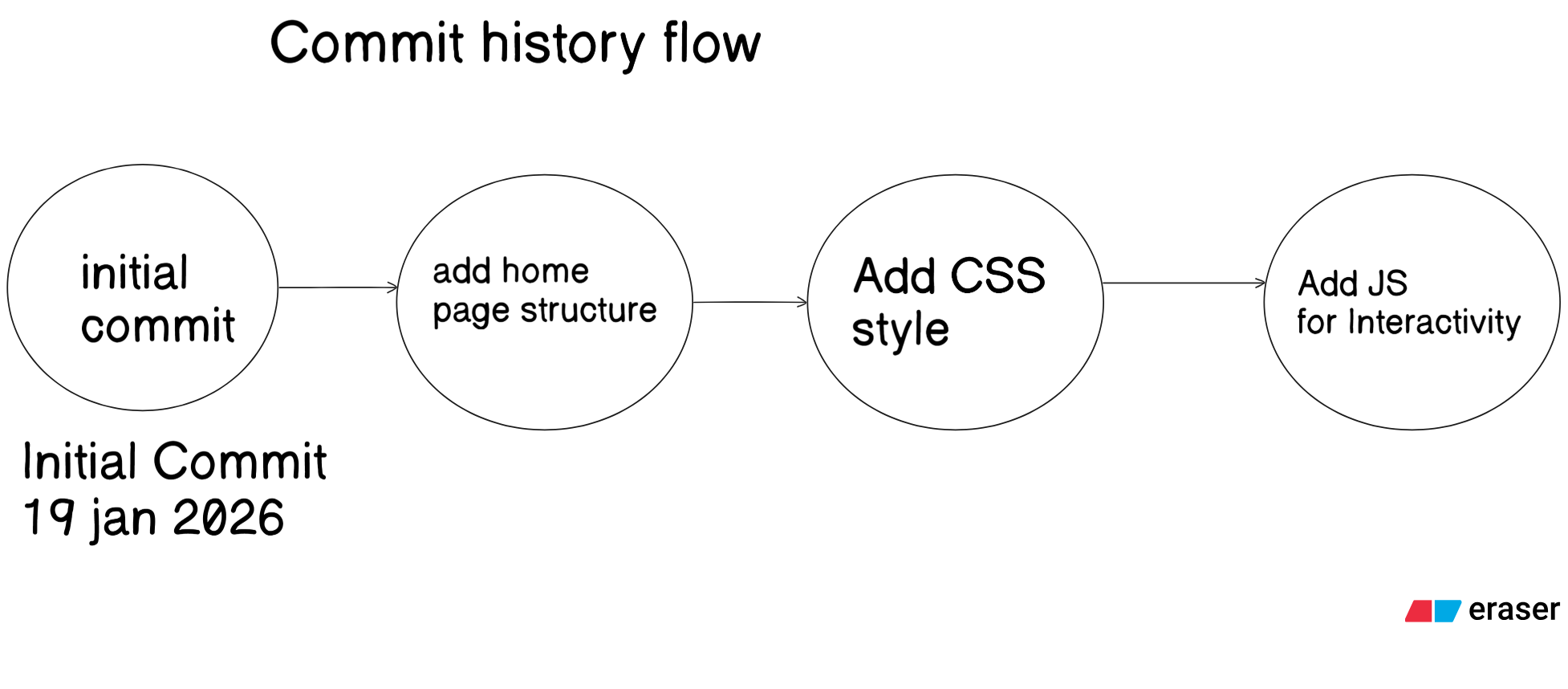
Every time you create a commit, it's like taking a snapshot of your project and adding it to a timeline. This timeline is your commit history. You can see what changes were made and when, and you can even go back to any of these previous points. The diagram below shows a simple, linear history of a project as it grows.
A Basic Developer Workflow
Here's a basic developer workflow using Git:
Initialize a repository:
git initCreate or modify files in your working directory.
For example, create a file named hello.txt with the content "Hello, world!".
- Stage the changes:
git add hello.txt
- Commit the changes:
git commit -m "Added hello.txt with initial content"
- Continue making changes, staging, and committing as you work.
For example, edit hello.txt to say "Hello, Git!". Then:
git add hello.txt
git commit -m "Updated hello.txt to say Hello, Git!"
View the commit history:
git log
You'll see a list of your commits, showing the changes you've made over time.


